F EQ 0.1.10 · User guide
Take control
of tonal balance.
Installation and operation of the Windows 64-bit VST3, CLAP and standalone releases. This guide covers version 0.1.10.
Download the Windows packageBack to F EQ1. Installation
- Extract the ZIP to a folder.
- VST3: copy the complete F EQ.vst3 folder into a VST3 location scanned by your DAW. Do not move only the file inside it.
- CLAP: copy F EQ.clap into your DAW’s CLAP folder.
- Rescan plugins, then insert F EQ on an audio channel. Mono and stereo are supported.
Common Windows locations (administrator permission may be required):
C:\Program Files\Common Files\VST3
C:\Program Files\Common Files\CLAP
Use a format supported by your DAW. Keep the supplied README, licence and third-party notices.
2. First adjustments
- Listen with EQ ON enabled.
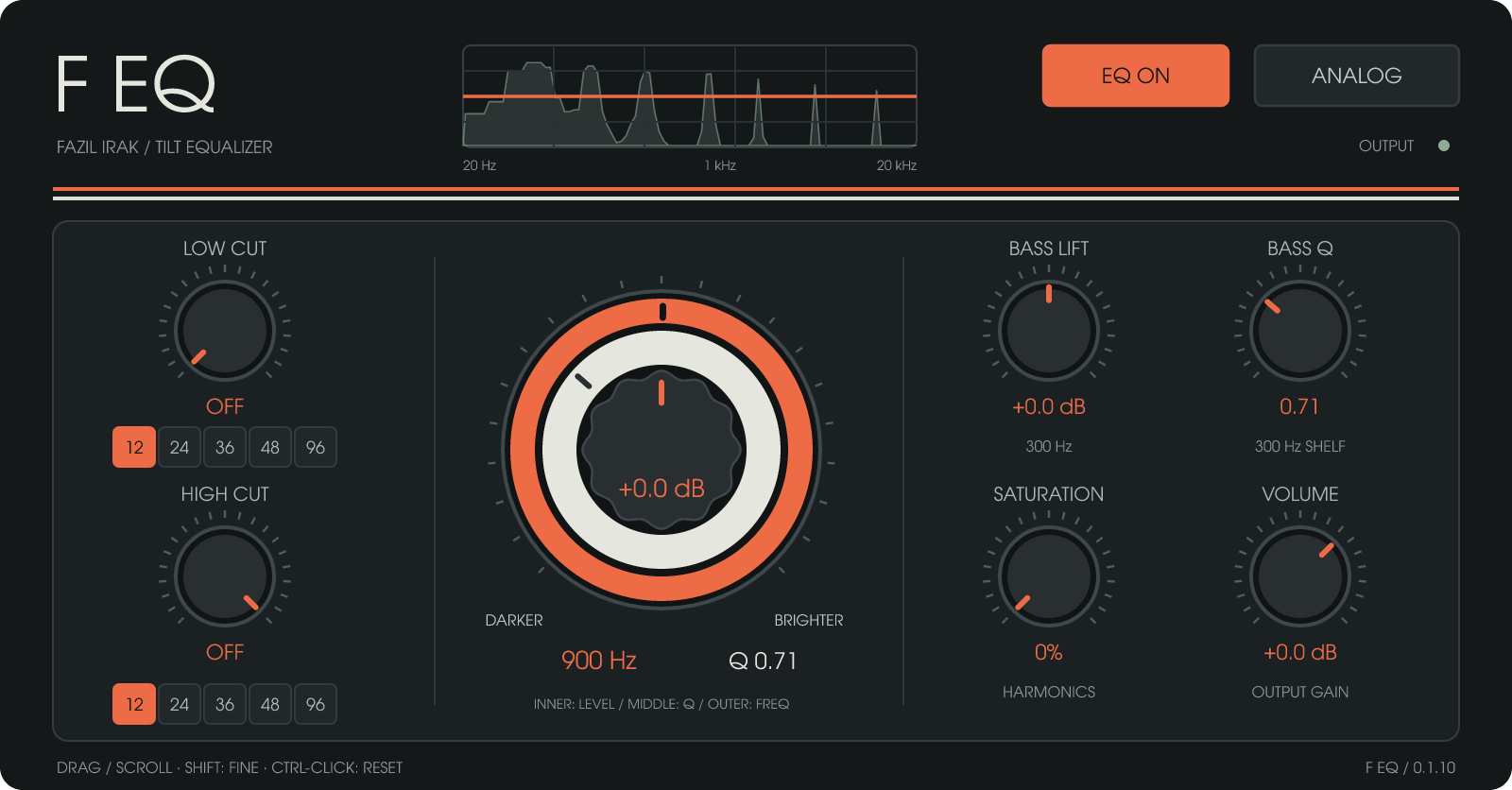
- Use the grey inner Tilt knob to adjust overall brightness or darkness.
- Move the orange outer Pivot ring to change the centre frequency.
- Use the off-white middle Tilt Q ring to shape the transition.
- Add Low/High Cut and Bass Lift if needed, then balance output with Volume.
- Compare at similar listening levels using EQ ON bypass. Bypass also removes the Volume gain.
3. Three concentric controls
The grey inner cap is Tilt, the off-white middle ring is Tilt Q and the orange outer ring is Pivot. Point at the intended control and drag vertically or use the wheel. Bass Q is a separate knob on the right and works independently of Tilt Q.
SHIFT gives fine adjustment. CTRL or ALT + click resets only the targeted control. Frequency knob movement is logarithmic: equal movement represents an equal frequency ratio.
4. Control reference
| Control | Range and behaviour |
|---|---|
| Tilt | −12…+12 dB. Right raises highs and lowers lows; left raises lows and lowers highs. |
| Pivot | 200…4000 Hz; default 900 Hz. Orange outer ring. |
| Tilt Q | 0.1…2.0; default 0.707. Off-white middle ring; shapes the tilt shelf transition. |
| Bass Lift | 300 Hz low shelf, −12…+12 dB. |
| Bass Q | 0.1…2.0; default 0.707. Shapes only the Bass Lift shelf. |
| Low Cut | OFF / 20…500 Hz. Fully left is off. |
| High Cut | 1000…22000 Hz / OFF. Fully right is off. |
| Slopes | Independent 12, 24, 36, 48 or 96 dB/octave for Low/High Cut. |
| Analog | Very low-level noise and small band-gain variations. Orange when enabled. |
| Saturation | 0…100%. Independent harmonic saturation; zero disables it. |
| Volume | −24…+12 dB output level. |
| EQ ON | When disabled, bypasses EQ, Analog, Saturation and Volume together. |
5. Cut filters and bass
Low Cut removes unwanted lows; High Cut limits highs. Select slopes independently with the buttons beneath each filter. Higher slopes give steeper boundaries. Parameter and slope changes are smoothed. At low sample rates, upper frequencies are constrained by the physical frequency limit.
Bass Lift is a 300 Hz shelf independent of Tilt. Bass Q shapes that shelf; Tilt Q shapes the main tilt shelves. Start with small gain changes and adjust by ear.
6. Analog and Saturation
Analog introduces small gain variations and very low-level noise, so a little noise with silent input is expected. Saturation is a separate harmonic colour control. Use them individually or together. Disable Analog and set Saturation to zero for clean operation.
7. Graph and output indicator
The orange line shows the linear EQ response, and the faded area shows the real-time output spectrum. The line excludes Volume, random Analog variations and Saturation. The spectrum fades when audio stops. OUTPUT is green with signal and orange at or above 0 dBFS. Boost and saturation can increase output level; use Volume to compensate.
8. Standalone EXE audio input
The standalone app processes a selected input device and sends it to an output. It does not automatically capture all system audio. No input is connected unless you select one on the command line. Open PowerShell in the extracted package folder.
Display options:
& '.\F EQ.exe' --helpList input devices:
& '.\F EQ.exe' --backend wasapi --input-device ''Start with an actual device name from that list:
& '.\F EQ.exe' --backend wasapi --input-device 'DEVICE NAME'The default Windows output is used. To select a specific output:
& '.\F EQ.exe' --backend wasapi --input-device 'INPUT DEVICE' --output-device 'OUTPUT DEVICE'Replace the placeholder names with your device names. Processing system audio requires a DAW or suitable virtual audio routing. Start at a low level when routing a live microphone to avoid feedback.
9. Automation and session recall
All controls support DAW automation, and settings are stored with the DAW project. Older sessions retain Tilt Q and initialise Bass Q to 0.707. Click the F EQ logo for version information; close with CLOSE, Esc/Enter or by clicking outside the window.
10. Troubleshooting
- Plugin not found: check x64/format support and the scan folder. Copy the complete VST3 folder and rescan.
- No sound in the DAW: check channel input and routing. Disable EQ ON to compare, then review Volume and cut settings.
- No sound in the EXE: select an actual input using –input-device; launching without it does not connect audio input.
- Unexpected noise: disable Analog and reset Saturation to zero.
- Output too loud: reduce boosts or Saturation, or lower Volume. Remember bypass removes output gain too.
Version 0.1.10 · Questions: info@fazilirak.com
F EQ product pageProduction tracking · Process management · Custom software

